Paperroom, by Origa Labs
Notes you write together, on your own server.
A notes app for a household, a few friends or a small team. Notes built from blocks on a calm page, folders with an Inbox, links between notes, drawings, and everyone writing at once. It all runs on one server you rent and control.
Try it opens a demo library that is private to you and deleted after an hour.
- One purchase, no subscription
- Up to 10 people
- On your own server
01 / How it works
Set it up once. Then write together.
Rent a small server, run one command on your own computer, and invite the people you write with. About fifteen minutes, and nothing to edit by hand.
-
01
Put it on a server.
Rent the smallest Ubuntu server at any provider and run the helper that comes with Paperroom. It answers in plain sentences and asks three questions.
-
02
Make your account.
Open the setup link it prints. This is your account on your own Paperroom, not an account with us.
-
03
Invite your people.
Make an invite link in Settings and send it any way you like. Each person gets their own Inbox and private folders, beside the library's Shared space.
02 / The page
A calm page, built from blocks.
Type a slash for the menu, or write Markdown as you go. Every note is a page you can shape.
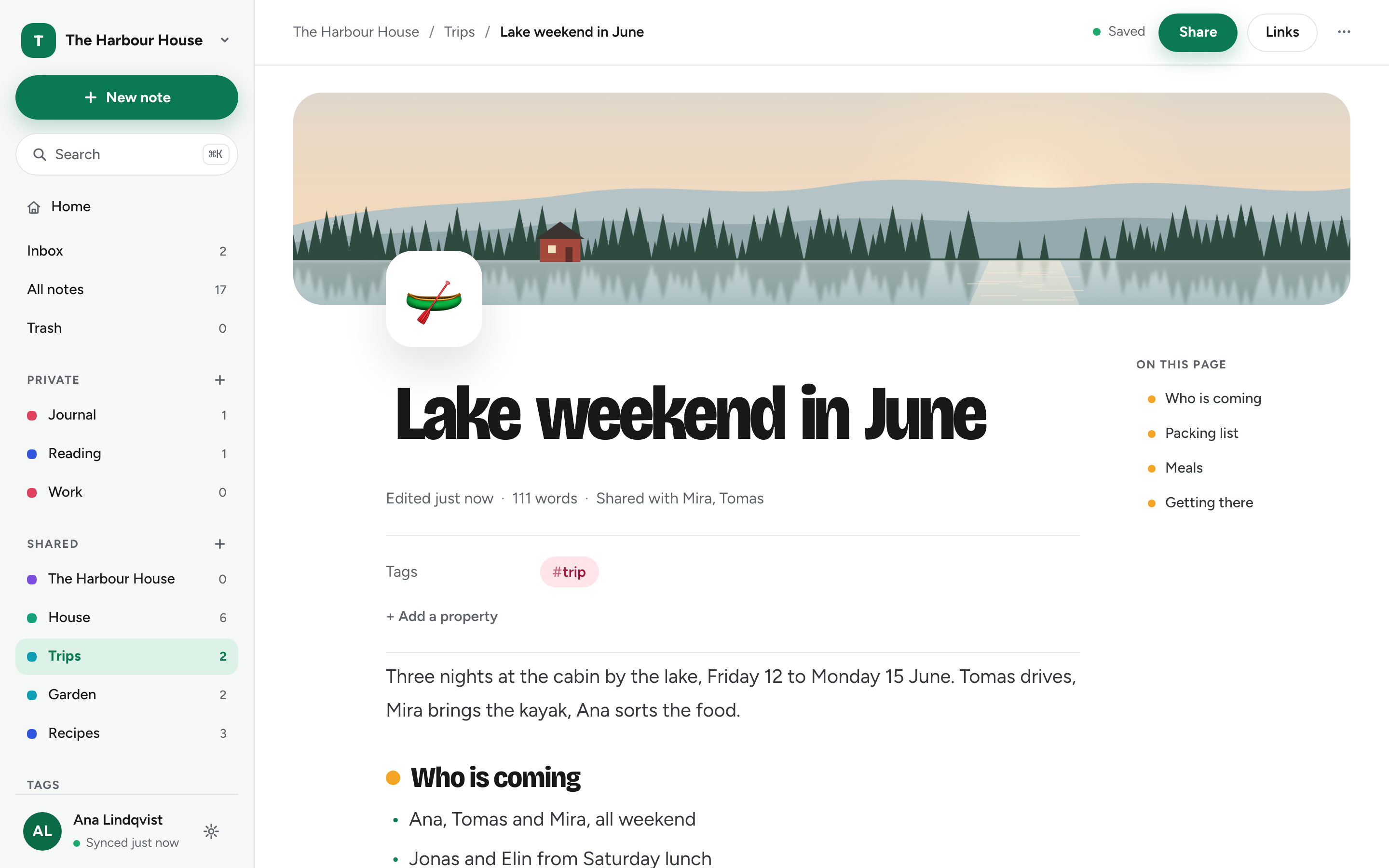

Every block you reach for.
Headings, lists, to-dos, toggles, quotes, callouts, tables and code, plus pictures, galleries and files.
Pages with character.
A cover, an icon and properties on any page, and templates for a checklist, a trip plan or meeting notes.
Drawings and whiteboards.
Put a drawing in a page, or make a whole note a whiteboard. Export it as PNG, SVG or an .excalidraw file.
03 / Together
Everyone in the same note, at once.
See who else is there and where they are typing. Several people can draw on one whiteboard together, each with their own pointer.


Private until you share.
Notes in your own folders are yours alone. Share a note with a person as an editor or a viewer, or turn on a link that lets anyone with it read or edit that one note.
Nothing is lost.
Version history keeps earlier versions of every note, and any of them can be restored. Edits made offline in a note you have opened merge when you are back.
Found in a few words.
Folders with an Inbox for quick capture, tags, and links between notes with backlinks and a small graph. Search looks through text, tables, code, file names and drawings.
04 / Assistants
Connect the assistants you already use.
Claude, ChatGPT, Claude Code and Codex can work in your Paperroom as you: find what you wrote, save new notes and draw on whiteboards, with only the permissions you grant.
- Claude
- ChatGPT
- Claude Code
- Codex
You decide what each may do.
The library's owner turns connections on in Settings. Each person approves a connection on their own Paperroom, ticks what it may do, and can revoke it there at any time. Every change an assistant makes is saved under that person's name and the assistant's, and the version of a note or drawing from before it can be restored.
Where they connect.
Claude and ChatGPT reach Paperroom over the internet, so it needs to be on a server with an https address. Claude Code and Codex also connect to Paperroom on the same computer.
Read how to connect each one05 / Your server
One command. Three questions.
The helper sets up a fresh server from your Mac, Windows PC or Linux computer: the firewall, a secure web address, automatic security updates for the server, and Paperroom running as its own user.
A small server, anywhere.
Any provider with Ubuntu 24.04 and a public IPv4 address. The smallest size is enough to start, at a few euros or dollars a month, paid to the provider, not to us.
Read the hosting guideYour own address.
Use a domain of your own, or start on an automatic address with no domain at all. Change it later from Settings.
A server you already run.
Paperroom can share it, sit behind the proxy you already have, or run in Docker.
Just want to look around first? Paperroom also runs on your own computer, where only that computer can reach it. When you want your people, put it on a server and move your notes there from Settings.
06 / Yours to keep
One folder. Nothing sent to us.
Your library lives in one folder on your server. Bring your notes in, back them up and take them out whenever you like.
Bring your notes in.
A Notion export, a folder of Markdown files, or Evernote. Paperroom shows a preview, and nothing is added until you say so.
Back up in one zip.
The owner downloads a backup of the whole library, with every note, drawing, file and setting. The hosting guide shows a nightly backup on the server too.
Take it with you.
Export the notes you can open as Markdown or JSON, or one note as Markdown, HTML or PDF.
Only the people you invite get in. No tracking. Nothing is sent to us except the update check: your licence key, this version and this server's kind, once a day. Turn it off in Settings.
07 / One-time purchase
Buy it once. Keep it.
One server, up to 10 people. No subscription.
Buy PaperroomCheckout is handled by Gumroad. After you buy, download the Paperroom zip, unzip it on your computer and open Start here.html inside. The hosting guide and the guide to connecting an assistant are here to read before you buy.
On a server, you pay the host a few euros or dollars a month; none of it comes to us.
Included
- Paperroom in one zip. It holds the program for your server (x86 or ARM), and the same program for Mac and Windows, so you can try it on your own computer first. The Docker files are included
- Paperroom apps for Mac, Windows, Linux and Android, each its own download. They are optional, because Paperroom also works in any browser
- Start here, the hosting guide and the guide to connecting an assistant in the Paperroom zip, readable offline
- Updates to 1.x, installed from inside Paperroom or as new files in your Gumroad Library
- One server and up to 10 people. If you need Paperroom for more than 10, write to hello@origalabs.com
08 / Questions
Questions
Who is Paperroom for?
A household, a few friends or a small team who want to write notes together on a server of their own. One purchase is for one server and up to 10 people.
Is it hard to set up?
It takes about fifteen minutes, and you never edit a file. You rent a server, run one command on your own computer and answer three questions; the helper does the rest and tells you what it is doing in plain sentences. The hosting guide walks through every step at Hetzner, with a picture of each screen, and says what any other provider needs to offer.
Do I need a domain?
No. A domain of your own, such as notes.yourname.com, is best, and the guide shows how to point one at your server. Without one, Paperroom starts on an automatic address, and you can change it later from Settings.
Does it work on my phone?
Yes, in the browser. Open your Paperroom's address on your phone and sign in. Add it to your home screen to open it like an app; on an iPhone, tap Share, then Add to Home Screen. On Android there is also a Paperroom app, an optional download that comes with your purchase. There is no App Store or Google Play app.
Can I move my notes from Notion or Evernote?
Yes. In Settings, Import takes the zip Notion makes when you export as Markdown and CSV, a folder of Markdown files, or Evernote's .enex files. Paperroom shows what it found first, and nothing is added until you press the button under the preview. It does not stay connected to either service.
Which assistants can connect, and do I need one?
Paperroom works fully without any assistant. If you use Claude, ChatGPT, Claude Code or Codex, you can connect them to work in your Paperroom as you, with only the permissions you grant. Claude and ChatGPT need Paperroom on a server with an https address, and your ChatGPT plan decides whether you can add a custom connection. Connections stay off until the library's owner turns them on.
Can Origa Labs see my notes?
No. Your library is stored on the server that runs Paperroom. Nothing is sent to us except the update check: your licence key, this version and this server's kind, once a day. Turn it off in Settings. The check carries no note, title, name or email address, and with the switch off nothing is sent unless the owner presses a button. Your library is not encrypted on disk, so anyone who can sign in to the server, or who has a backup, can read it; keep backups somewhere private.
What if we grow past 10 people?
Paperroom 1.0 includes up to 10 people in one library, and Settings shows how many places are in use. An invite that would go past 10 is refused until you remove someone or revoke an invite. If you need Paperroom for more than 10 people, write to hello@origalabs.com and we will talk.
Are updates included?
Yes. Updates to 1.x are included with your purchase. Once the library's owner saves the licence key from your Gumroad receipt in Settings, Paperroom checks once a day and says there when a new version is ready. Nothing is installed until the owner presses Install and restart, or turns on Install updates automatically. Every update is signed by Origa Labs and checked before it is installed. In Docker, you rebuild the image from the new download instead. The licence key is only for updates, and Paperroom runs without it.
Why does my computer warn me the first time I open it?
Paperroom is not yet signed with Apple or Microsoft. macOS asks you to allow it once in System Settings, and Windows shows a SmartScreen notice with a Run anyway option. Start here.html walks you through both. On a server, the helper puts Paperroom in place for you.
What if it will not run on my server?
If Paperroom will not run on your server, ask for a refund within 14 days. Write to hello@origalabs.com.
Paperroom is made by Origa Labs.